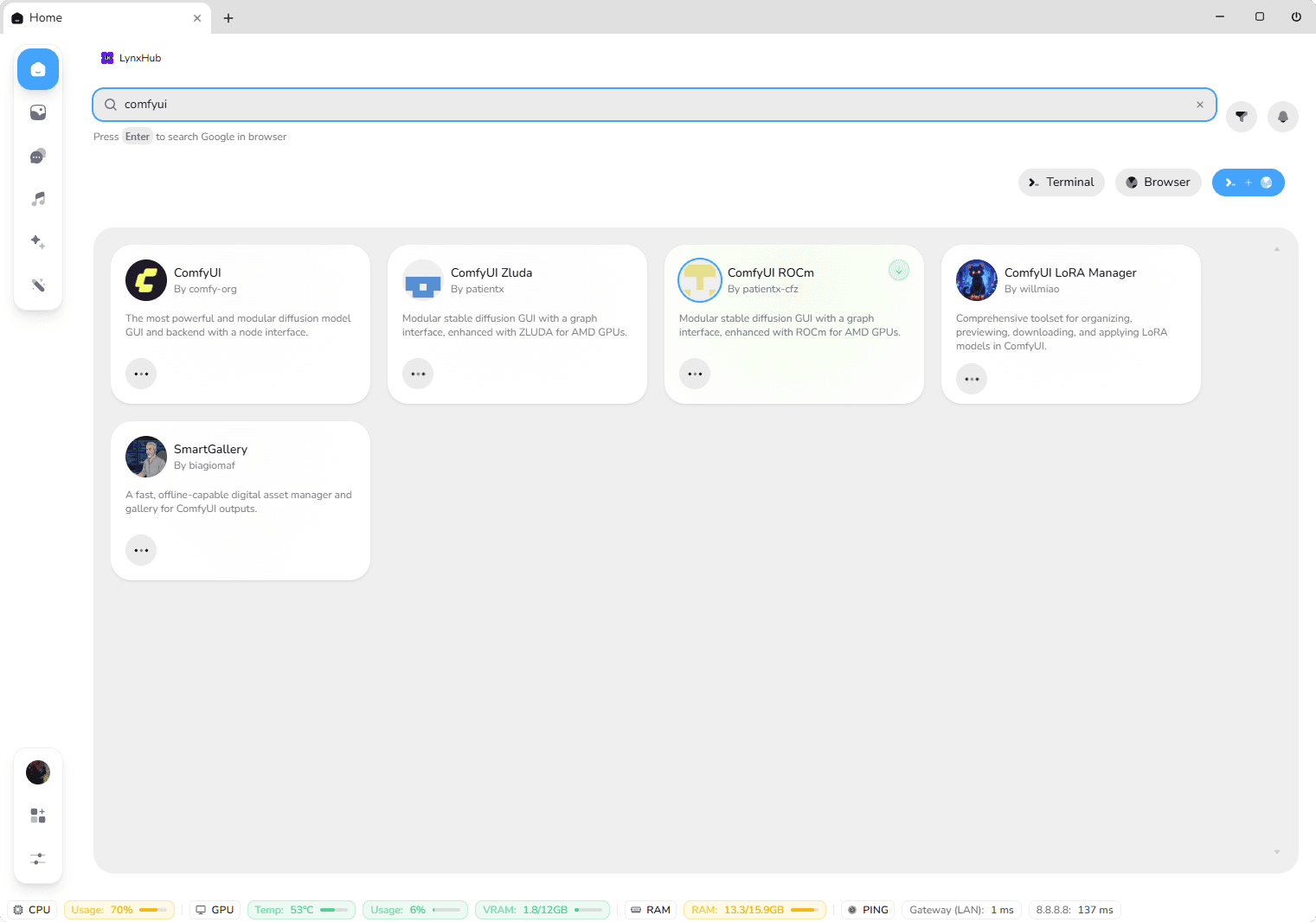
If you've ever had your ComfyUI generation crash from an Out-Of-Memory (OOM) error, spent an hour hunting for a missing .bat file, or broken your environment after updating custom nodes, you know the frustration of local AI management. Running powerful node-based workflows shouldn't require fighting terminal commands or deciphering cryptic PyTorch errors. In this guide, we’ll look at the most common ComfyUI setup hurdles, explore essential launch flags for low-VRAM GPUs, and show you how LynxHub unifies command-line flags, virtual environments, and live hardware monitoring into one smooth, visual workspace.
Step-by-Step Instructions
Follow along step by step to complete this setup on your machine.
Pre-Requirements (Optional Extension Setup)
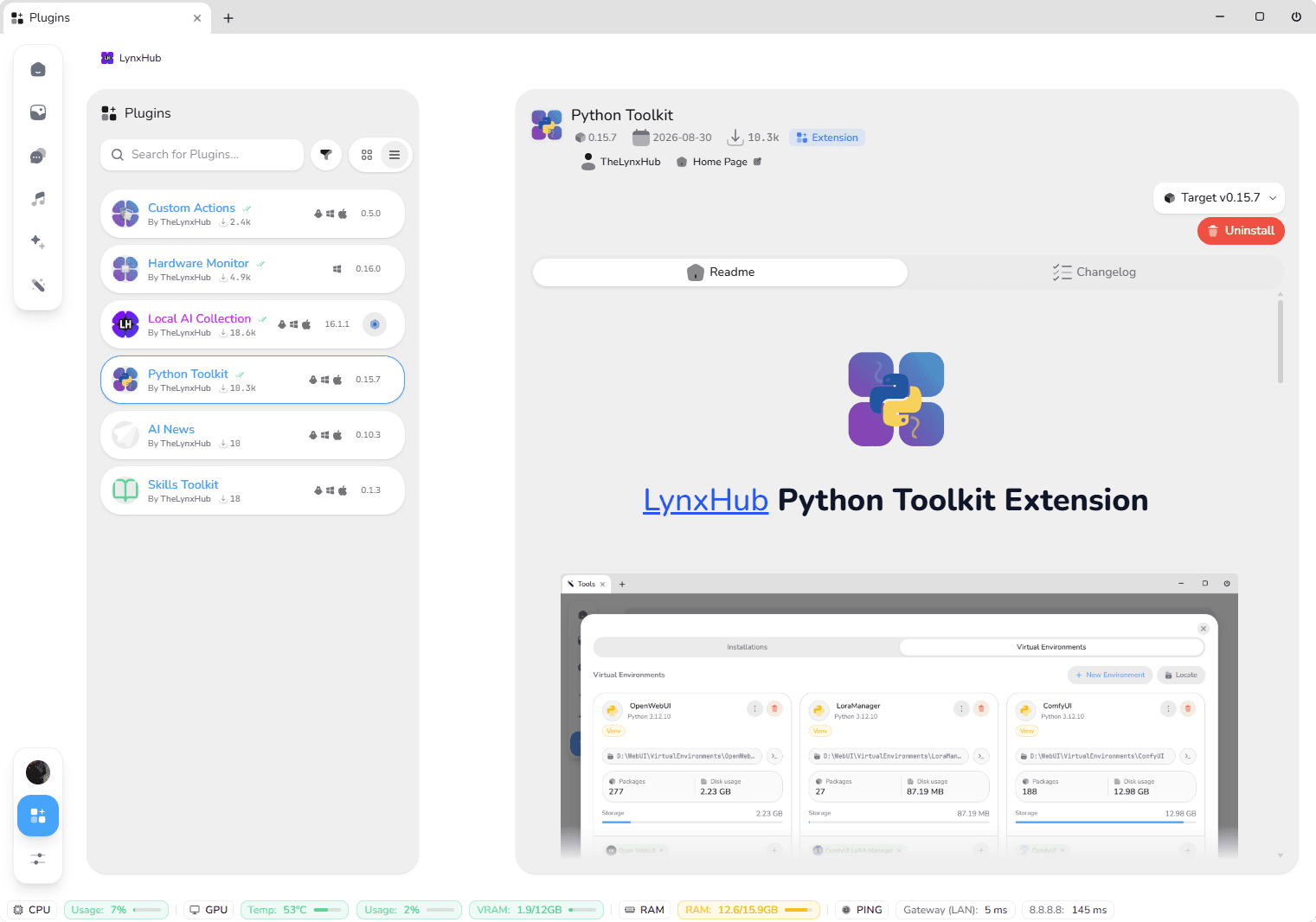
1 minsBefore launching ComfyUI, setting up official LynxHub extensions gives you full system visibility and isolated environment control.
- Install the Python Toolkit: Open the LynxHub Plugins Manager and install the Python Toolkit. This extension manages Python versions, isolated virtual environments, and PIP requirements graphically, preventing system-wide package conflicts.
- Enable the Hardware Monitor: Install the Hardware Monitor extension. Once enabled, live GPU VRAM allocation, core temperatures, and RAM consumption appear directly in your LynxHub status bar.
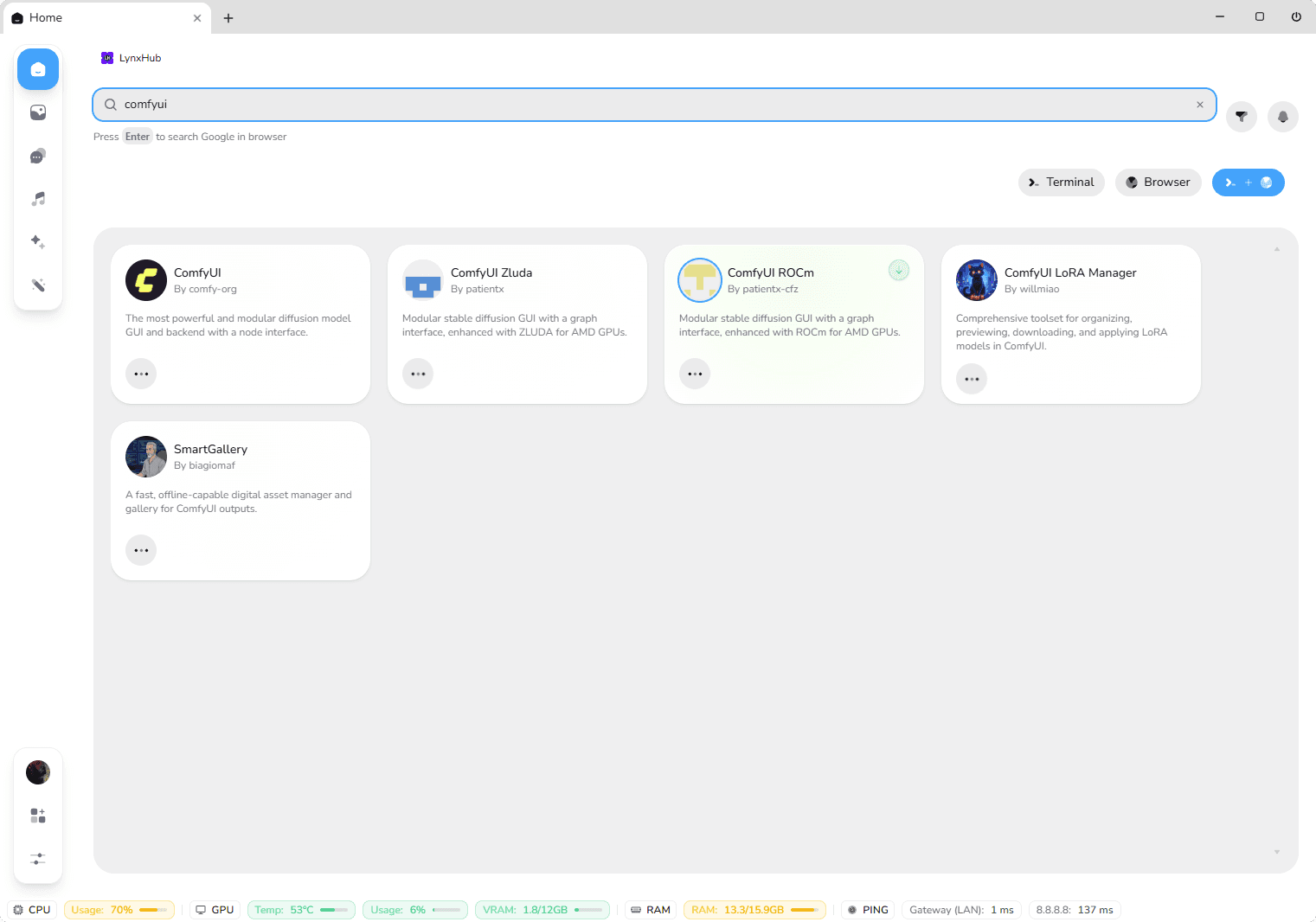
Locating and Selecting ComfyUI on LynxHub Home Page
1 minsLynxHub provides access to community AI interfaces directly from its central search hub.
- Navigate to the LynxHub main dashboard.
- Type ComfyUI in the search bar to view supported tools and forks.
- Click Install to set up a new instance, or select Locate to connect an existing portable ComfyUI installation on your disk.
Customizing Window Structure, Pre-Launch Rules & Startup Flags
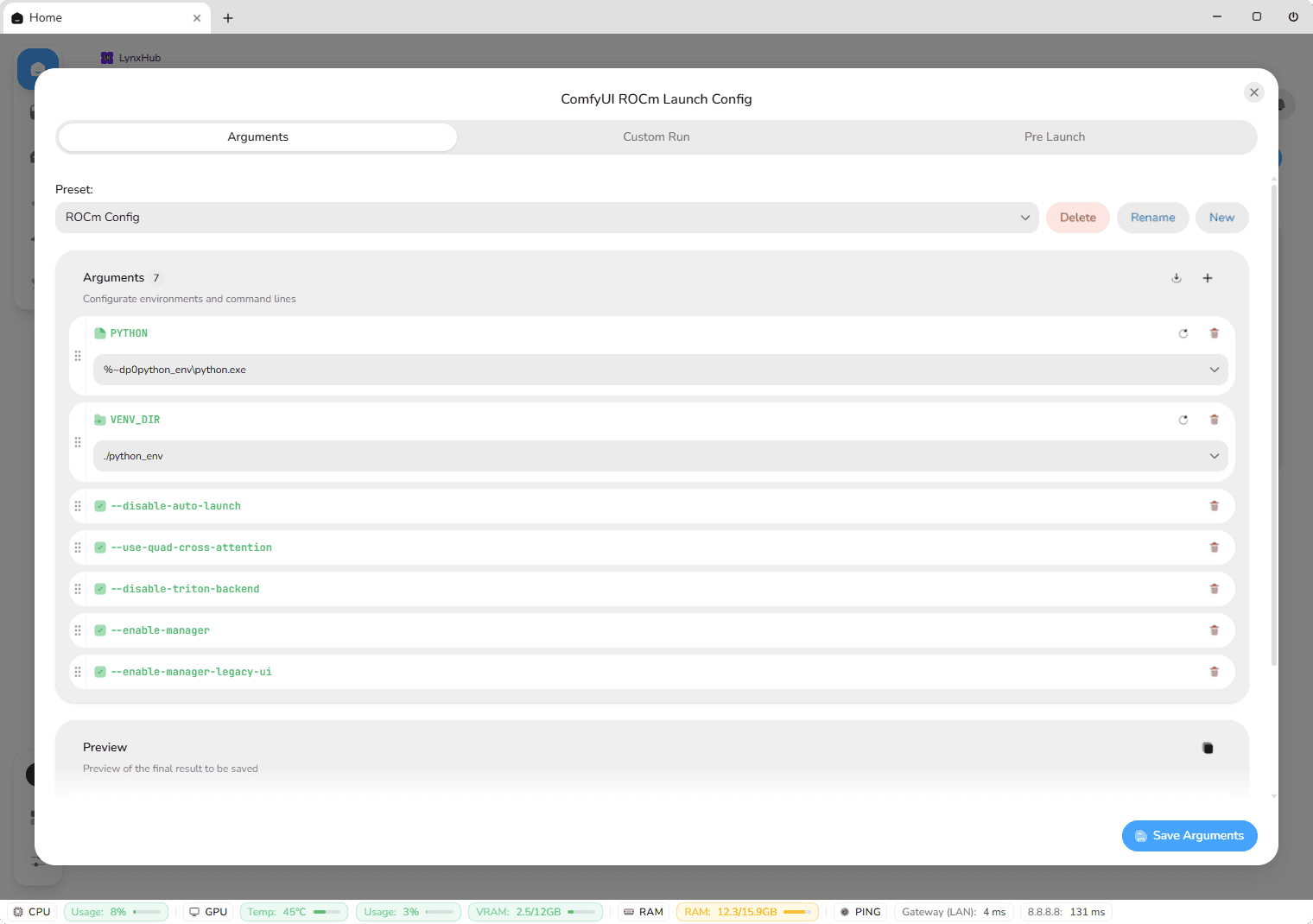
1 minsAfter selecting ComfyUI, LynxHub opens a dedicated launch setup screen.
From this configuration window, you can customize your runtime parameters, set pre-launch commands, attach quick folder shortcuts (e.g., direct links to your output or models directories), and manage startup arguments without modifying .bat files.
Key Technical Optimizations for ComfyUI Users
1Mastering VRAM Allocation & Low-GPU Memory Settings
Out-Of-Memory (OOM) errors are the most common issue encountered when generating images or running large models like FLUX. Understanding how startup flags work in LynxHub's Visual Argument Builder helps prevent crashes:
2Fixing Broken Python Dependencies & PyTorch CUDA Conflicts
When installing custom nodes via ComfyUI Manager, dependencies can silently upgrade PyTorch or xFormers, causing errors like "PyTorch not compiled with CUDA enabled".
Rather than executing complex terminal commands or reinstalling the entire portable folder, LynxHub's Python Toolkit lets you select the exact virtual environment, inspect installed package versions, and execute targeted repair commands or PyTorch downgrades through a visual UI.
3Pre-Launch Automations & Custom Action Shortcuts
Power users often perform manual setup steps before launching main.py. LynxHub simplifies this through Pre-Launch Actions:
- Automatically run a cleanup script to clear temporary latent files.
- Verify or update custom node dependencies before starting the server.
- Add custom Action Cards to immediately open output image folders or external model paths upon launch.
4Git Branch Control & Rollback Safeguards
Updating ComfyUI or custom nodes can sometimes break existing workflows. LynxHub integrates full Git repository tracking into the interface:
- View the latest commit details and release tags before updating.
- Switch between repository branches (e.g.,
mainvs. experimental release branches). - Stash local changes to prevent update conflicts.
Conclusion
Managing ComfyUI should be about creating AI workflows, not fighting broken batch files or diagnosing memory leaks. By unifying terminal logs, browser tabs, visual argument management, and hardware telemetry, LynxHub provides the control and stability needed for smooth local AI generation.
Ready to streamline your setup? Download LynxHub today and experience a cleaner, more reliable ComfyUI workspace.
Ready to Accelerate Your AI Workflow?
LynxHub brings local LLMs, multimodal agents, terminals, and plugins into a single, lightning-fast workspace. No vendor lock-in. 100% private.